Documenting Code
Properly documenting your code is important. It increases reproducibility and dissemination of your work. RStudio provides special packages that make it easy to write clear and eye-catching documentation of your code without the need to put in any extra effort.
The easiest way is to use the Compile Report-button to produce a report in html- or pdf-format. You can apply this to any R-script. With this method, explanatory text is added using the #-symbol. However, such reports are not exactly pretty. R can do much better. Using the package Rmarkdown enables you to document your code using the very easy typesetting language Markdown. You can then produce reports including the text describing the code, the code itself, and the results including graphical output.
To give you an idea how elegant your code and documentation can look, I note that all websites through which I provide exercises to you are produced using RMarkdown, e.g., this one from the Ecology course. In fact, you could easily write a whole book using RMarkdown such as this one or make a personal website like this one.
In order to create an RMarkdown document you have to first install and load the package rmarkdown.
install.packages("rmarkdown")
library(rmarkdown)
Once this package is installed, open a new RMarkdown document under the file menu: ->File ->New Document ->R Markdown. This will open an .Rmd file. You then have to choose an output format (e.g., PDF or HTML among many others, HTML seems to be the most robust). You compile the report in RStudio to produce the desired output by either typing Ctrl+Shift+K (Cmd on a Mac) (when launched for the first time, RStudio may prompt you to install some packages) or press the Knit-button that is located in the menu bar of the script window.
Using RMarkdown is an easy method to write documents that contain extensive documentation of your code using plain text. You can alternate documentation and code chunks by using special RMarkdown tags. Code chunks are set within triple tick marks, followed by {r}:
```{r}
#Everything between these marks will be evaluated in the R console
curve(log, from = 0, to = 2)
abline(h = 0)
```
While working on you document, you can either execute code using the code section or evaluate all code in one step by presseing Ctrl+Shift*S (Cmd on a Mac). Text not enclosed in triple tick marks is not evaluated and this is how you include normal text to your report.
Below you can see a few examples of Rmarkdown syntax that allows you to format your text in different ways:
# This is a first-level headline
## This is a second-level headline
*italics*
**bold**
As said above, code chunks are enclosed by triple tick marks with an {r} at the beginning (indicating that the enclosed code is written in R and not some other programming language). You can enter new code chunks under the Insert-menu at the top of the script window. Several optional arguments can be added to the code chunk.
If you do not add any optional argument your report will show both the code chunk and the output:
curve(exp(x), from = -1, to = 1)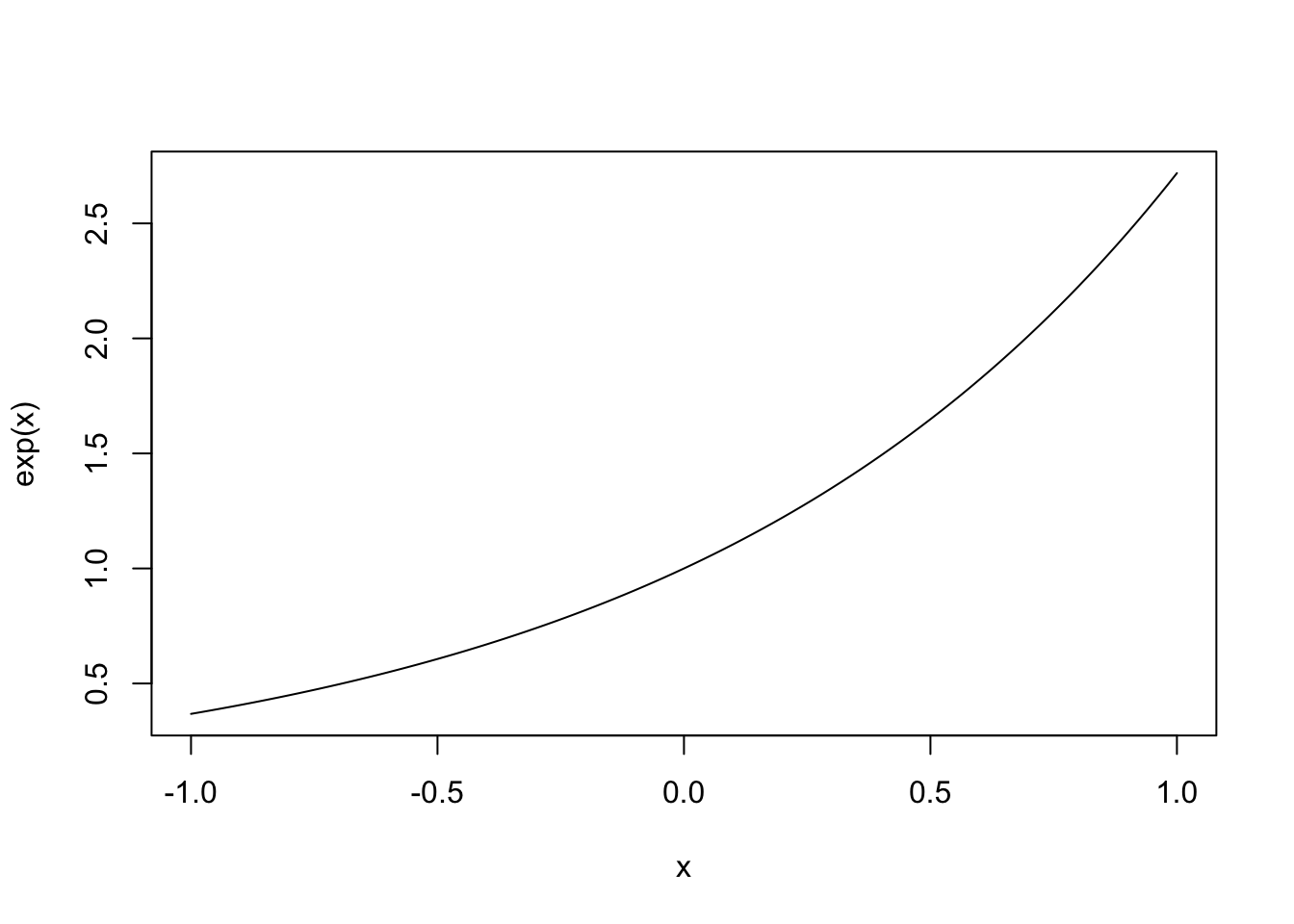
If you only want the code chunk the report but not the output start your code chunk with {r eval=FALSE}:
curve(exp(x), from = -1, to = 1)Finally, if you only want the output to show up in your report but not the code chunk you have to add the optional argument start the code chunk with {r echo=FALSE}:
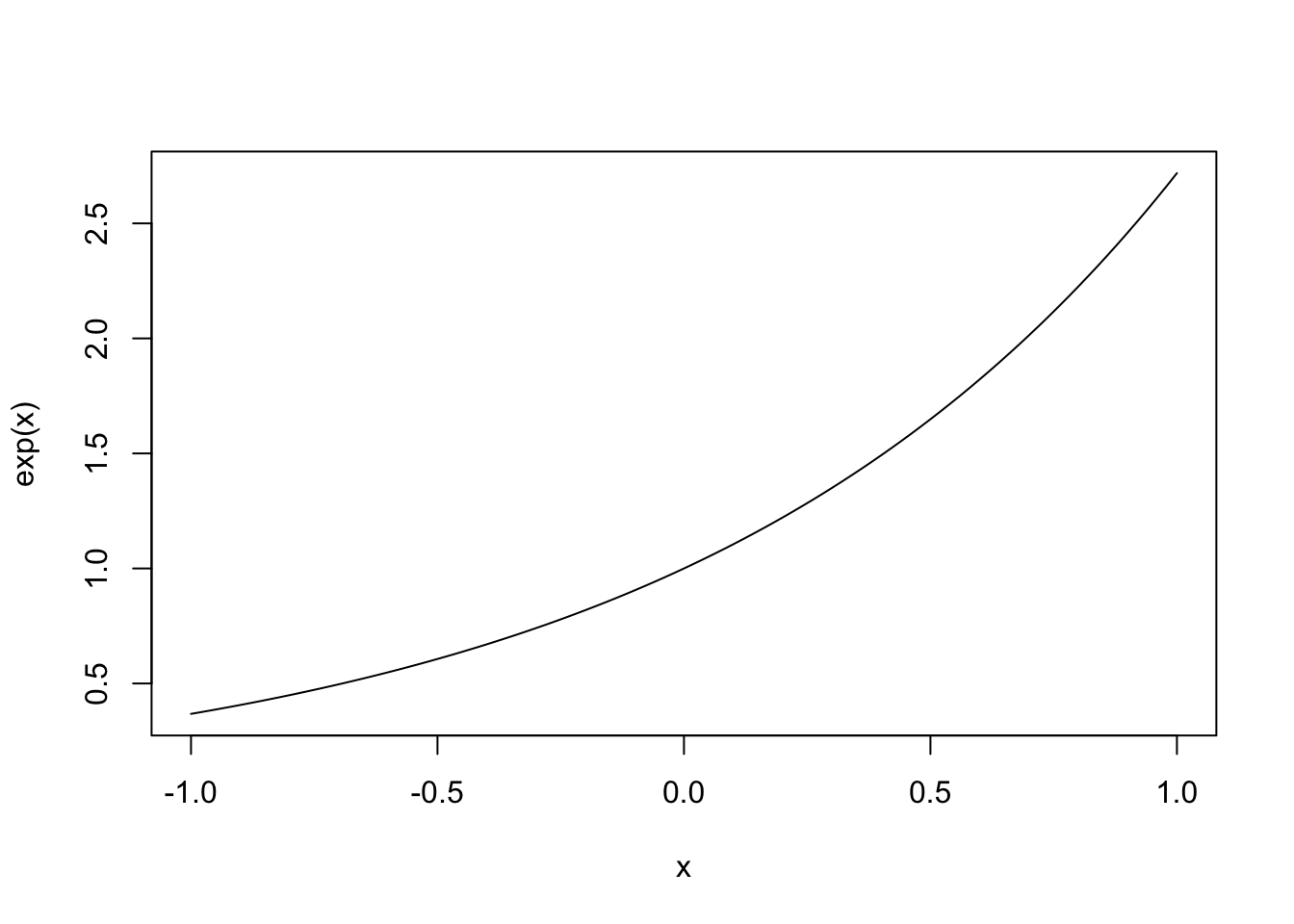
Mathematics witin Rmarkdown-documents
\(\LaTeX\) is a free type-setting languge to produce beautiful documents that include lots of mathematics. Rmarkdown allows you to include latex-code such as
$$
N(t + 1) = N(t)(1 + \beta - \delta)
$$
\[ N(t + 1) = N(t)(1 + \beta - \delta). \] Here, the the two dollar-symbols before and after the equation open and close a Latex-environment, respectively. Whatever is in between will be interpreted as Latex-code. If you want to write math that is within a line, such as \(N(t + 1) = N(t)(1 + \beta - \delta)\), then open and close the latex environment with only a single $-sign. This website provides a very concise overview of how you can use Latex within a Rmarkdown-document.
Import figures into Rmarkdown documents
It is also possible to import pictures into an Rmarkdown file. For this to be possible, you need to place the picture file in a place where R can find it. In this example, I stored the image file Rmarkdown-logo.png inside a folder called images, which is located inside the same R-project as this .Rmd-file. The picture is then included by writing .

Caption for the image
If the optional argument [Caption for the image] is left empty, the caption is omitted. A more powerful method for including pictures exists in the form of the function knitr::include_graphics():
knitr::include_graphics("images/Rmarkdown-logo.png")The advantages of this method are for example discussed here.
Tables
It is easy to include simple tables into an Rmarkdown document using the function knitr::kable(). As an example, let us create a simple data frame and then present it as a table.
Height <- c(70, 65, 63, 72, 81)
Volume <- c(10.3, 10.3, 10.2, 16.4, 18.8)
tree.data <- data.frame(Height, Volume) # a data frame with two columns and five rows

knitr::kable(
  tree.data, format = "html", table.attr = "style='width:30%;'", caption = 'Table caption'
)| Height | Volume |
|---|---|
| 70 | 10.3 |
| 65 | 10.3 |
| 63 | 10.2 |
| 72 | 16.4 |
| 81 | 18.8 |
This is the simplest possible option to make a table and countless possibilities exist to fine tune tables, see for example here and here.
Altering the style of your document
Rmarkdown-themes allow you to alter the appearance of your document by defining a theme in the header of your document. For instance, this particular website uses a theme called journal. You can find a quick introduction to Rmarkdown-themes here.
Additional resources
As always, the internet is full with resources. One gets a long way using this cheatsheet.You can find an introduction to the basics of RMarkdown here. This tutorial seems nice and crisp and more comprehensive overview can be found here.