R as an Oversized Calculator
Getting started
R is a versatile programming language for statistical analysis, data analysis and numerical calculations. The main hurdle new users face when learning R is that it is based on a command-line interface: to make things happen, you write text commands that then can be executed by the program. This might seem unusual if you are used to software based on a graphical user interface, where you tend to work by clicking on windows and buttons. However, the command line is what makes it easy to automate your analysis - all you have to do is collect all the commands in a script, and then run them in R.
Installing R and RStudio
We are using RStudio, a graphical interface that simplifies the use of R by giving you immediate access to the code, the console, and the graphics.
To install R and RStudio, you can follow these instructions.
Finding Help
Each command in R comes with a manual page. To access it, type ?[NAME OFCOMMAND] in the console (e.g., ?lm). Alternatively, search the command under the help-tab in the bottom right window of RStudio.
But really, if you need help with R the internet is your friend. Virtually any problem you might encounter has been described and solved somewhere on the internet. It’s all about to phrase your question in the right manner in a Google search. Most often you will end up on stackexchange, stackoverflow or r-bloggers.
The Anatomy of RStudio
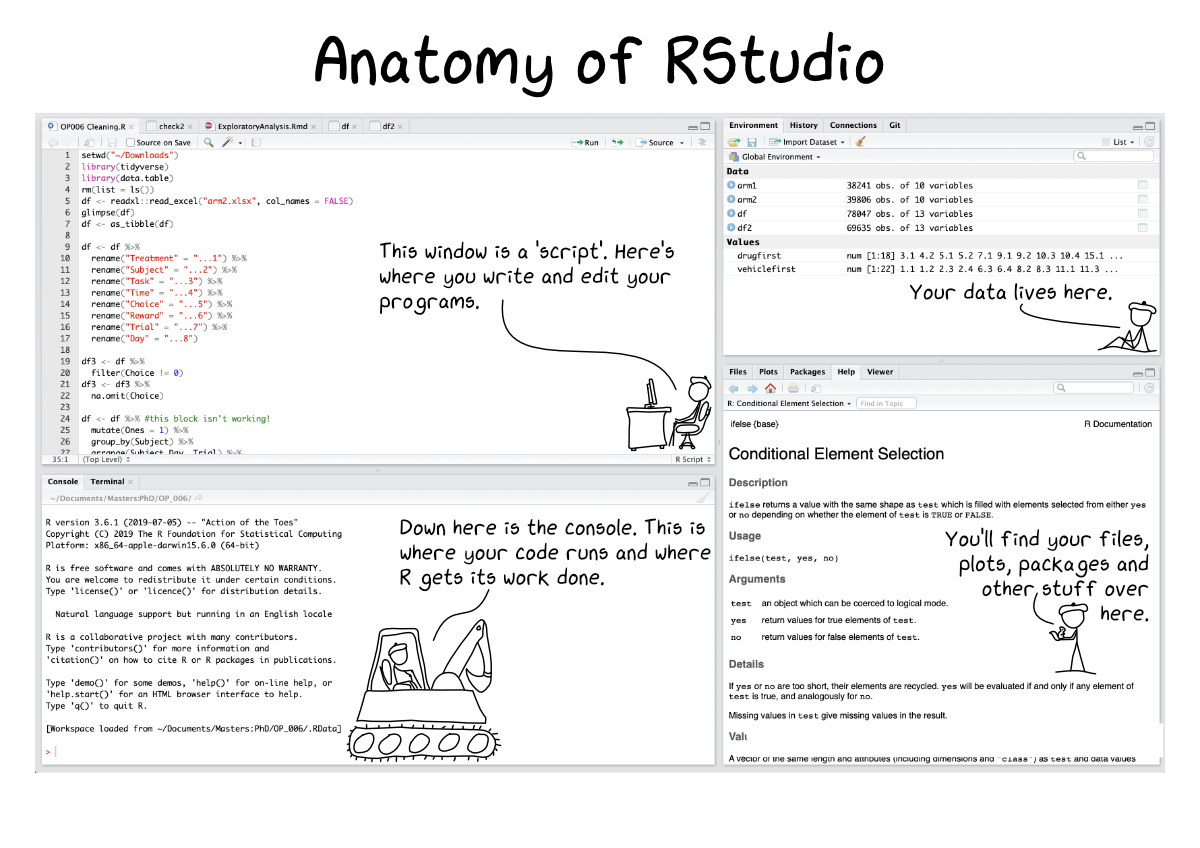
RStudio is a so-called integrated development environment, IDE for short, developed to facilitate your interaction with R. By default the RStudio window consists of four sub-windows (as shown below, figure taken from here):
- The interactive R console (lower left)
- Environment/History (tabs in the upper right window)
- Files/Plots/Packages/Help/Viewer (tabs in the lower right window)
- Editor panel for R-scripts. This window appears in the top left once you opened an R-script.
Scripts vs. Console
You could actually accomplish almost everything you need for your research without writing any scripts — simply type the commands in the console one at a time. If you work in the console, then a “greater than sign” (>) at the beginning of the line in the console means that R is ready to accept your input.
However, it makes usually more sense to write your code into the script window, which results in a text file (called a script) with extension .R. In this way, you can
| recycle | You will encounter similar problems in the future, and, having a script, you will be almost done before you even start. |
| automate | You will need to repeat the analysis on a different data set, or slightly tweak it in response to comments. This will be quick if you have a script, while repeating the analysis from scratch would take considerably longer (not to mention the possibility of making mistakes). |
| document | By organizing your code in a script, you will know exactly what you did to obtain your results. You will much appreciate this precise documentation when you write the “Methods” section of your paper or thesis. More on documenting code later. |
| share | Having a script makes it much easier to share your analysis with other scientists. You can ask your coauthors to examine your code for errors before you publish and eventually share it with other scientists who want to conduct their analysis exactly as described in your “Methods” section. |
Basic operations
We first explore simple operations, assignments, and data types to get familiar with the R.
1.7 * 2 # multiplication
12 / 5 # division
2.1 ^ 5 # power
The following table provides a list of arithmetic and logical operators in R:
| Operators | Description |
|---|---|
| + | Addition |
| - | Subtraction |
| * | Multiplication |
| / | Division |
| ^ or ** | Exponentiation |
| == | Equal to |
| != | Differs from |
| > | Greater than |
| < | Less than |
| >= | Greater than or equal to |
| <= | Less than or equal to |
| & | Logical and |
| | | Logical or |
| ! | Logical not |
Let’s have a closer look at the logical operators. They create a logical value by comparing two elements:
5 > 3
5 == (10 / 2)
6>2^4
6 >= (2 * 3)
(5 > 3) & (7 < 5) # logical AND
(5 > 3) | (7 < 5) # logical OR
The logical not-operator can be useful in data filtering.
! TRUE #  negates a logical value or expression, turning TRUE into FALSE and vice versa
! FALSE
! (5 > 3)

x <- c(2, 4, 6, 8, 4)
! (x == 4) # checks where entries of the vector x are NOT equal to 4
x[! (x == 4)] # returns the vector without the entry 4
R comes with many built-in mathematical functions. Some are listed in the next table.
| Function | Description |
|---|---|
| abs(x) | Absolute value |
| sqrt(x) | Square root |
| cos(x), sin(x), tan(x) | Trigonometric functions |
| log(x) | Natural logarithm |
| log10(x) | Base 10 logarithm |
| exp(x) | exponential function \(e^x\) |
log(10) # natural logarithm
log10(10) # logarithm to base 10
sqrt(9) # square root
We can use the operator %in% to search for matches. It returns a logical value (i.e., TRUE or FALSE) indicating whether or not a match exists.
3 %in% 1:5 # 1:5 generates a sequence
# c() combines values into a vector or list
# all arguments are converted to the same type (here it is a character string)
c(2, "good to be", TRUE)
2 %in% c(2, "good to be", TRUE)
# test for multiple elements at once
1:8 %in% c(1, 3, 5)
Assignment and Data Types
Everything in R is an object, where an object is a name that you can use to call up stored data. When programming in R, you assign data to objects using the assignment command is <- (less-than sign, followed by a minus sign). Each new object will appear in the environment-pane in the top-right of RStudio.
x <- 5 # assign the value 5 to x
x * 2 # use variable x to perform operations
x <- 7 # assign new value to variable, this overwrites the previous assignment
x * 2
Note that the previous value is overwritten whenever a new value is assigned to the variable. To list all the variables you have created, type ls(). To remove a variable x from the current R session, type rm(x).
R can handle different types or modes of data, the most important ones are numeric (numbers), character (strings of character, e.g., a word), and logical (TRUE and FALSE). In the following, we assign a new value to the variable x, each time altering its type. To determine the type of variable x, use the command class. You can also test whether a variable is of a certain type by using the functions is.numeric, is.character, etc.
# numeric (real numbers)
x <- 5
class(x)
X # note that R is case sensitive, that is, x is different from X
x <- pi # a numeric that R knows
class(x)
# logical (TRUE or FALSE)
x <- (5 > 7)
class(x)
# character (strings)
x <- "hello"
class(x)
is.numeric(x)
If you need to change the type of a variable (an operation called casting), use the functions as.character or as.numeric, etc. In RStudio, if you type the first few letters of the name of a function or a variable, you can see all the possible ways to complete the name; try typing as. to see all the available functions for type conversion. Some examples:
x <- "05.2" # assign a character string
class(x)
(x <- as.numeric(x)) # cast character string to numeric, round brackets around assignment produce output
as.logical(x) # all x not equal 0 are TRUE
as.logical(0) # only 0 is FALSE
Objects
Everying in R is an object. Objects come in different types, the most important ones are vectors, matrices, lists, and functions.
Vectors
The most basic data structure in R is the vector, which is an ordered collection of values of the same type. As such, vectors are 1-dimensional objects. Vectors can be created by concatenating different values with the command c:
x <- c(2, 3, 5, 2, 3, 13, 17, 3) # a numeric vector
y <- c("a", "b", "c") # a vector of characters
z <- c(1, "a") # entries in a vector have to be of the same type
z # R coerces 1 into a character
class(z)
You can access the elements of a vector by their index. You can access the elements of a vector by specifying their positions:
x[3]
x[8]
x[9] # what if the element does not exist?
You can add entries to a vector by gluing to the end of an existing vector.
x <- 1:3
x <- append(x, c(4, 5)) # gluing two vectors together
x[7] <- 7 # inserting a value at a certain position of the vector
Alternatively, you can access the elements of a vector by specifying using the logical TRUE:
x[c(TRUE, FALSE, FALSE, FALSE, FALSE, FALSE, FALSE, FALSE)]
x[c(TRUE, FALSE, TRUE, FALSE, TRUE, FALSE, TRUE, FALSE)]
You can extract several elements at once (i.e., create another vector) using the colon (:) command, or by concatenating the indices:
x[1:3]
x[4:7]
x[c(1,3,5)]
Sometimes one wants to know at which position in a vector a certain values occurs. We can find out with the which function.
which(x == 3) # the value 3 occurs at position 2, 4 and 8
which(x > 5) # values larger than 5 occur at position 6 and 7
length(which(x == 3)) # the value 3 occurs exactly three times within the vector x
Given that R was born for statistics, there are many statistical functions you can perform on vectors:
length(x)
min(x)
max(x)
sum(x) # sum all elements
prod(x) # multiply all elements
median(x) # median value
mean(x) # arithmetic mean
var(x) # unbiased sample variance
mean(x ^ 2) - mean(x) ^ 2 # population variance
summary(x) # print a summary
You can generate vectors of sequential numbers using the colon command:
x <- 1:10
x
For more complex sequences, use seq:
seq(from = 1, to = 5, by = 0.5)To repeat a value or a sequence several times, use rep:
rep("abc", 3)
rep(c(1,2,3), 3)
Exercises
- Create a vector containing all the even numbers between 2 and 100 (inclusive) and store it in the variable
z. - What is the sum of all the elements of
z? - Is the sum of the elements of
zequal to 51 × 50? - What is the product of entries at position 5, 10, and 15 of
z? - Does
seq(2, 100, by = 2)produce the same vector as(1:50) * 2? - What happens if you type
z^2?
Matrices
A matrix is a two-dimensional object where data are stored in a rectangular array with rows and columns. In the case of numeric values, you can perform common matrix operations (e.g., product, inverse, decomposition):
# create matrix by specifying values, number of rows, number of columns
A <- matrix(c(1, 2, 3, 4), nrow = 2, ncol = 2)
A # by default, the matrix is filled column by column
(A <- matrix(c(1, 2, 3, 4), nrow = 2, ncol = 2, byrow = TRUE)) # fill matrix by row
A %*% A # matrix product
solve(A) # matrix inverse
A %*% solve(A)
diag(A) # vector containing the diagonal elements
B <- matrix(1, 3, 2) # 3 x 2 matrix filled with 1s
B
t(B) # transpose
B %*% t(B)
# by default, matrices are filled by column
(C <- matrix(1:9, 3, 3))
(D <- matrix(c("a", "b", "c", "d"), 2, 2))
A %*% D # matrix operations are not defined for matrices with character entries
Determine the dimensions of a matrix (the numbers of rows and columns) using the following commands:
dim(B)
nrow(B)
ncol(B)
Use indices to access a particular row/column of a matrix:
C
C[1, ] # first row
C[, 2] # second column
# select sub-matrix with coefficients of second
# and third columns of the first two rows
C[1:2, 2:3]
# concatenate positions to index nonadjacent rows/columns
C[c(1,3), c(1,3)]
Several functions exist to compute sums and averages of matrices:
rowSums(C) # sum of the values in each row
rowMeans(C) # arithmetic mean for each row
colSums(C) # sum of the values in each column
colMeans(C) # arithmetic mean for each column
sum(C) # sum of all matrix entries
mean(C) # arithmetic mean over all matrix entries
Lists
Vectors are a good choice when each element is of the same type (e.g., numbers, strings). Lists are used when we want to store elements of different types, or more complex objects (e.g., vectors, matrices, even lists of lists). Each element of the list can be referenced either by its index, or by a label:
# create list containing two vectors that are labelled Names and Values
mylist <- list(Names = c("a", "b", "c", "d"), Values = c(1, 2, 3))
mylist # prints the content of mylist
mylist[[1]] # access first entry within list by index
# note that in order to access entries in a list we have to use [[]]
mylist[[2]] # access second entry by index
mylist$Names # access first entry by label
mylist[["Names"]] # an alternative way to access by label
mylist[["Values"]][3] # third element of the second entry
Data Frames
Data frames are special matrices that contain additional information about its content such as row and column names. In short, data frames are R’s equivalent to a an EXCEL spreadsheet. The columns (typically representing different measurements) can be of different types (e.g., one column could be the date of measurement, another the weight of the individual, or the volume of the cell, or the treatment of the sample), while the rows typically represent different samples.
When you import a spreadsheet file into R, it is automatically stored as a data frame. The difference between a matrix and a data frame is that in a matrix all the values are of the same type (e.g., all numeric), while in a data frame each column can be of a different type.
Let us look at a data set that comes with R, called trees.
data(trees) # load data set "trees"
str(trees) # structure of data frame ’data.frame’
ncol(trees) # number of columns
nrow(trees) # number of rows
head(trees) # print the first few rows Girth Height Volume
trees$Girth # select column by name
# select column by name; return first 5 elements
trees$Height[1:5]
trees[1:3, ] # select rows 1 through 3
trees[trees$Height > 80, ] # select all rows that contain trees taller than 80 ft
# select rows 1 through 3; return column Volume
trees[1:3, ]$Volume
trees <- rbind(trees, c(13.25, 76, 30.17)) # add a row
trees_double <- cbind(trees, trees) # combine columns
head(trees_double)
# change column names
colnames(trees) <- c("girth", "height", "volume")
head(trees)
Exercises
- What is the average tree height?
- What is the average girth of those trees that are more than 75 ft tall?
- What is the maximum height of trees with a volume between 15 and 35 ft^3?
We can also create our own data frame within R:
height <- c(2.2, 2.4, 2.7)
width <- c(0.7, 0.75, 0.85)
(my.trees <- data.frame(height, width))
To glue additional rows and columns to a data frame we use the functions rbind and cbind, respectively.
(my.trees <- rbind(my.trees, c(1.9, 0.55))) # adding a new row to the data frame my.trees
dead <- c("yes", "no", "no", "no")
(my.trees <- cbind(my.trees, dead)) # adding a new column with the name dead to the data frame